Pop-ups are often blocked by default in modern web browsers to protect you from unwanted advertisements, phishing attempts, and malicious websites. However, many legitimate and safe websites require pop-ups for essential functions such as logging in, processing secure payments, or displaying important announcements. Below is a highly detailed, step-by-step guide on how to unblock pop-ups across all major web browsers and devices.
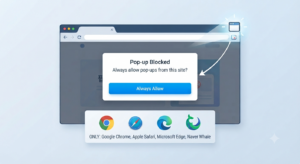
1. Google Chrome (PC & Mac)
Quick Fix via Address Bar:
Look at the far right side of your address bar. If a pop-up was blocked, you will see a small icon resembling a square with a red ‘x’ or a red badge.
Click that icon.
Select “Always allow pop-ups and redirects from [website name]” and click Done.
Refresh the page (F5 or Command+R) to see the pop-up.
Manual Settings Configuration:
Click the three vertical dots (Menu) in the top right corner of Chrome and select Settings.
On the left sidebar, click Privacy and security, then select Site settings.
Scroll down and click on Pop-ups and redirects.
Under the “Allowed to send pop-ups and use redirects” section, click the Add button and type in the exact URL of the website you want to allow.
2. Google Chrome (Mobile App – Android & iOS)
When a pop-up is blocked, Chrome will display a small banner at the bottom of the screen or near the address bar saying “Pop-up blocked.” Tap Always show on this banner.
To manually allow them: Tap the three dots (top right on Android, bottom right on iOS) > Settings.
Tap Site settings (or Content settings) > Pop-ups and redirects.
Toggle the switch to enable pop-ups. (Note: On mobile, it’s generally safer to turn this back off after you finish what you need to do).
3. Apple Safari (iPhone, iPad, & Mac)
iPhone & iPad:
Open the device’s native Settings app (the gear icon).
Scroll down the list of apps and tap on Safari.
Under the “General” section, find the Block Pop-ups toggle.
Turn the switch Off (so it turns grey instead of green).
Mac:
Open Safari. From the top menu bar, click Safari and select Settings… (or Preferences).
Go to the Websites tab at the top.
On the left sidebar, scroll down and click Pop-up Windows.
Find the currently active website on the right side and change the dropdown menu from “Block and Notify” to Allow.
4. Microsoft Edge (PC & Mac)
If a pop-up is blocked, you will see a small pop-up blocker icon in the right side of the address bar. Click it and select Always allow pop-ups from this site.
For manual settings: Click the three horizontal dots in the top right corner and go to Settings.
Select Cookies and site permissions from the left menu.
Scroll down to select Pop-ups and redirects.
In the “Allow” section, click Add and type the website URL.
5. Naver Whale (PC & Mac)
When Whale blocks a pop-up, a blocker icon (often looking like a padlock or monitor with a slash) will appear on the right side of the address bar. Click it to allow pop-ups for that specific site.
To manage settings: Click the three dots in the top right > Settings.
Go to Privacy & Security > Site Settings.
Click on Pop-ups and redirects and add your desired website to the allowed list.
6. Advanced Troubleshooting & Pro Tips
If you have configured the browser correctly but the pop-up still won’t open, check the following:
Ad Blockers and Extensions: Extensions like AdGuard, uBlock Origin, or Adblock Plus can forcefully block pop-ups regardless of your browser settings. Try pausing or disabling these extensions on the specific website.
Security Software / Antivirus: Some robust antivirus programs include ‘Web Shield’ features that block pop-ups. You may need to add the website to your antivirus whitelist.
Try Incognito / Private Window: Press
Ctrl + Shift + N(Windows) orCommand + Shift + N(Mac) to open an Incognito window. Since extensions are usually disabled here, you can quickly test if an extension is causing the issue.