Since Microsoft introduced the Copilot icon to the taskbar in Windows 11, many users have wondered about its actual usefulness. While generative AI is transforming productivity, an unused background AI tool can feel like bloatware that consumes system resources.
Here is a comprehensive breakdown of what Microsoft Copilot is, its actual performance, and how to safely disable or remove it without affecting your operating system.
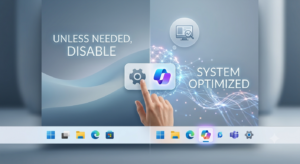
1. What is Microsoft Copilot? Features and Performance Breakdown
Copilot is Microsoft’s generative AI assistant powered by OpenAI’s GPT models. It is deeply integrated into the Windows ecosystem and Microsoft 365 apps to assist with daily computing tasks.
Windows Copilot: Built directly into Windows 11 to adjust system settings, launch applications, summarize screen content, and answer queries.
Microsoft 365 Copilot: Embedded in Word, Excel, PowerPoint, Outlook, and Teams to automate drafting documents, analyzing data, generating presentations, and summarizing meeting notes.
GitHub Copilot: A specialized coding assistant for developers that provides real-time code autocompletion and debugging.
Web & Mobile Copilot: Formerly known as Bing Chat, offering conversational AI, search capabilities, and DALL-E image generation for free or paid tiers.
Real-World Performance
Copilot excels not just as a standalone chatbot, but as an integrated productivity layer across your files and work environment.
Office & Task Automation (Excellent): Converting a 10-page document into a 5-slide PowerPoint deck takes seconds. It efficiently summarizes lengthy email threads and transcribes action items from Microsoft Teams meetings.
Internal Data Search (Very Good): It searches your local files, OneDrive, or company SharePoint to pull relevant data based on natural language requests.
Developer Workflows (Top Tier): GitHub Copilot remains one of the most effective AI tools for code completion and syntax troubleshooting.
Limitations: It is not a 100% fully automated solution. Complex Excel formulas and intricate design layouts still require human adjustments. Think of Copilot as an assistant that quickly delivers a 70–80% complete rough draft.
2. Can You Remove Copilot safely? System Impact Analysis
If you do not use AI tools in your daily workflow, having Copilot permanently pinned to your taskbar can be unnecessary.
The bottom line: Disabling or removing Copilot will NOT harm your Windows 11 operating system.
System Impact
Copilot runs as an independent application rather than a critical Windows kernel process. Removing or disabling it will not affect File Explorer, Windows Settings, or system updates. In fact, turning it off reduces background activity, freeing up approximately 1% to 3% of your RAM.
Why Users Choose to Remove It
Taskbar Decluttering: Removing unnecessary icons to free up screen real estate.
Privacy & Security: Preventing background data processing, especially under strict corporate privacy policies.
Resource Optimization: Conserving CPU and RAM on lower-spec systems to improve overall responsiveness.
3. Step-by-Step: How to Disable or Remove Copilot
If you prefer to keep your system stable and avoid potential conflicts with future Windows updates, disabling Copilot is generally recommended over full uninstallation.
Step 1: Hide Copilot from the Taskbar (Easiest Method)
Open Settings (
Win + I) > Personalization > Taskbar.Toggle the Copilot switch to Off.
The icon will instantly disappear from your taskbar.
Step 2: Disable via Group Policy Editor (Windows 11 Pro / Enterprise)
Press
Win + R, typegpedit.msc, and hit Enter.Navigate to:
User Configuration>Administrative Templates>Windows Components>Windows Copilot.Double-click Turn off Windows Copilot, set it to Enabled, and click OK. (Requires a system restart).
Step 3: Package Removal via Command Line
You can fully remove the application package using PowerShell or Command Prompt (Admin). However, major Windows feature updates may reinstall the package automatically. Managing it via system policies or settings remains the cleanest approach.
Summary & Recommendations
For visual decluttering: Simply hide the icon via Windows Settings.
For performance optimization: Disable background processes using Group Policy.
For complete removal: Use command-line options, keeping in mind that major OS updates might restore the app.
Disabling unused background tools is an easy way to streamline your desktop environment and maintain a responsive PC.