GeneratePress is basically a lightweight WordPress theme, but just because the theme alone is lightweight does not mean the entire site is automatically fast.
Actual page speed is determined together by theme + plugins + images + server + cache + ads + external scripts.
Therefore, if you have chosen GeneratePress, the next step is not touching the theme itself to make it more complex, but reducing unnecessary loading elements across the entire site.
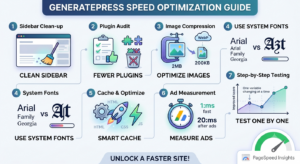
1. Clean up from the sidebar first
On an informational blog, there is no need to put excessively many widgets in the sidebar.
It is good to leave only widgets that are actually used, like search and recent posts, and remove widgets that are not needed.
In particular, if duplicate widgets appear after changing the theme, check Appearance → Widgets first.
If you do not need the sidebar itself in GeneratePress, you can select Content (no sidebars) in Appearance → Customize → Layout → Sidebars.
2. Never install a lot of plugins unconditionally
In WordPress, people often install plugins when adding a single feature.
However, as unused plugins pile up, site management becomes complex.
When installing plugins, it is better to judge whether they are actually necessary rather than simply for the reason that “there is a good feature.”
In particular, plugins such as the following can affect site performance, so you must verify their actual necessity:
Page builders Animation plugins External font plugins Analytics plugins Social sharing plugins Ad plugins Various design extension plugins
3. Reduce image file sizes
One of the elements taking up significant space on actual blog pages is images.
No matter how lightweight the theme is, if multiple 2MB images go in, the page is bound to become heavy.
Therefore, before uploading images, you can consider ways to resize them to appropriate dimensions and use efficient image formats like WebP.
In particular, it is best to avoid uploading images that are much wider than the post width as they are.
4. Check the fonts too
Using web fonts can add a process of fetching font files from outside.
If the purpose of the blog is delivering information, using easy-to-read system fonts rather than fancy fonts is also a good method.
It is not that speed necessarily slows down drastically due to a single font, but in the process of reducing the number of requests for the whole site, it is worth checking.
5. Beware of conflicts with cache and optimization settings
Installing a cache plugin allows caching or optimizing HTML, CSS, JavaScript, etc.
However, if you use multiple optimization plugins simultaneously and turn on the same features in duplicate, problems can actually occur.
For instance, if two plugins merge or delay JavaScript at the same time, the site’s menu or ads might not function properly.
Therefore, when using cache plugins, it is good to change and measure one by one.
6. Measure speed again after ads are inserted
On sites using AdSense, the speed measured without ads and the speed actual visitors experience can be different.
Google’s Auto Ads analyze page structure, content, etc., and automatically place ads. Also, they can check existing ads and determine new ad positions.
Therefore, just because the PageSpeed score was very high with only the theme installed, you should not think that the same score will come out after installing ads.
7. You don’t unconditionally have to turn off Auto Ads
Previously, it was easy to think simply in a way that reducing Auto Ads was good for site speed.
However, currently Google provides various settings to adjust ad formats and placements in Auto Ads. In-page ads, overlay ads, intent-based formats, etc. can be adjusted individually, and excluding specific areas or pages is also possible.
Therefore, rather than using Auto Ads unconditionally or turning them off unconditionally, it is good to check what formats are suitable on the actual site.
8. Don’t look only at PageSpeed scores
Google PageSpeed Insights is a very useful tool, but you shouldn’t judge site performance looking at a single score alone.
What is actually important is how quickly visitors can view the page.
Therefore, it is good to check the following items together:
Mobile loading Desktop loading First screen display speed Content display speed Image loading Ad loading Layout shifts Perceived speed on actual mobile phones
9. Optimization must be done one by one
The most common mistake when improving speed is changing multiple settings all at once.
For example, if you do:
Cache activation CSS minification JavaScript deferral Image compression Font changes Ad changes
at the same time, even if speed gets better, you cannot know what was effective.
Conversely, when a problem occurs, it is also difficult to find which setting caused the issue.
Therefore, it is good to change and test one or two things at a time.
What to do first in the free version of GeneratePress
If your goal is speed, the following order is practical:
Step 1: Remove unnecessary widgets
Step 2: Remove unnecessary plugins
Step 3: Image optimization
Step 4: Check fonts
Step 5: Check cache settings
Step 6: Measure again after applying ads
Step 7: Check directly on mobile
Even just doing this much can make a significant difference.
Conclusion
Because the free version of GeneratePress is already a theme that emphasizes lightweightness, there is no need to necessarily upgrade to Premium for speed.
Rather, on actual sites, images, plugins, ads, external scripts, etc. can have a bigger impact than the theme.
Therefore, keeping the free version of GeneratePress while configuring the site simply, using only necessary features, and managing ads and images is the core of speed optimization.