Understanding the building blocks of your computer is essential in the digital age. While purchasing a pre-built PC is convenient, knowing the basics of hardware allows you to maximize efficiency while staying within your budget. Whether you are into video editing, high-end gaming, or professional office work, knowing which components to prioritize is the key to building the perfect machine.
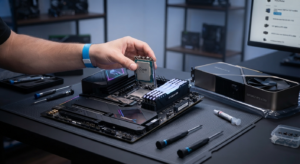
Hardware vs. Software: The Basics
Hardware refers to the physical components you can touch, while software is the set of programs that makes those components run. Without adequate hardware performance, even the best software will fail to perform, much like a car with a weak engine struggling to handle the highway.
Checking Your Current Specs
Before upgrading, you must know your current status. On Windows, open Task Manager and head to the Performance tab. Here, you can instantly see the model names and usage rates of your CPU, Memory (RAM), Disk, and GPU. This data is the foundation of any successful upgrade.
The Core Four: CPU, GPU, RAM, and Storage
These four components dictate your computer’s performance:
CPU (Central Processing Unit): The Brain The CPU handles all calculations. Intel and AMD dominate the market. For basic office tasks, an Intel Core i3 or Ryzen 3 is sufficient. For gaming or professional workloads, opt for an Intel Core i5 or Ryzen 5 and above. More cores translate to better multitasking capabilities.
GPU (Graphics Processing Unit): The Visual Powerhouse If you are into gaming or video editing, the GPU is your most critical component. NVIDIA GeForce series is the industry standard. We recommend at least an RTX 4060 class for high-end gaming. For simple office work, integrated graphics within the CPU are more than enough.
RAM (Random Access Memory): The Workbench RAM is your digital workspace. The larger the “workbench,” the more programs you can run simultaneously. 16GB is the current standard, while 32GB+ is recommended for gaming and video editing. Always check for compatibility between your motherboard and RAM (DDR4 vs. DDR5).
Storage (SSD vs. HDD) SSDs are now mandatory for your operating system. NVMe M.2 SSDs offer speeds several times faster than traditional SATA drives, significantly improving boot times and application responsiveness.
Tailored Configurations Based on Your Needs
For Office Work & Web Surfing: Focus on cost-effectiveness. A current-gen entry-level CPU, 16GB RAM, and a 500GB SSD will last you over five years. You can save money by skipping a dedicated graphics card.
For Gaming & Video Editing: Spend at least 40% of your budget on the GPU for gaming. If you use a high-resolution monitor, prioritize VRAM. For video editing, focus on multi-core CPU performance and high RAM capacity.
Common Mistakes to Avoid
Overlooking the Power Supply Unit (PSU): Do not skimp on the PSU. A low-quality power supply can cause system instability or hardware failure. Always use a rated, reliable unit.
Ignoring Compatibility: Check your motherboard socket and CPU compatibility before purchasing. Use online PC building/compatibility checkers.
Neglecting Cooling: High-performance CPUs generate heat. Consider a high-quality air cooler or an AIO liquid cooler to prevent thermal throttling and maintain peak performance.
Final Action Plan for a Smart Purchase
Hardware knowledge is about efficient budget allocation and meeting your specific goals.
Assess your usage patterns and define your requirements.
Verify compatibility using online PC building tools before ordering parts.
Choose assembly services or pre-built PCs with transparent component lists if you are uncomfortable building one yourself.
Stay updated with annual tech releases to keep your machine relevant.
By following this guide, you can successfully build or upgrade a PC that perfectly suits your needs!